Set up a show. Run it.
Set up a show in about fifteen minutes, then run it from one screen: standbys, GO, live cue numbers from the desks, messages and countdowns for every crew position.
The idea
The stage manager's computer is the hub. It talks to the desks (ETC Eos, grandMA3, grandMA2, QLab, a Behringer X32 or Midas M32 sound desk, or any software that sends OSC), and it holds every cue light. Each crew position is a station: a Go2Cue box on the wall, any Windows or Mac computer running Go2Cue, or an iPhone or iPad with the Go2Cue Station app. Every station shows the cue that's running and the one that's next, lights up red for a standby, and green for GO.
- Three parts, each Free, Lite or Pro: Cues (cue lights, desk triggering and crew cue lists), Notes (rehearsal notes and video review) and Coms (headsets). Take only the parts your show needs (see Licenses).
- Everything runs on your own network. No internet is needed during a show.
- Only the stage manager's computer needs a license. The crew's stations need nothing: Go2Cue on a crew computer, iPhone or iPad needs no license, and a box has no license of its own. The stage manager's license sets how many stations it can call: one on Cues Free, 8 on Cues Lite, any number on Cues Pro. Every box counts, two on one station number too. Stations past the license's number show grayed with UPGRADE, and a box set to one shows FULL; which stations work never depends on which box turned on first.
- Free, for as long as you like: a complete cue light for one crew position. Call a standby and the station lights red; the operator answers READY, and you see it; your GO turns it green. Hold, messages (quick, typed, or urgent with a sound), countdown calls, GO from a keyboard, MIDI controller or Stream Deck, and show files all come with it. It follows one desk too, so you and the operator see the cue that's running and the one that's next. Running that desk's cues from Go2Cue comes with Cues Lite and up: on Cues Free its buttons say VIEW ONLY, and the operator takes their own GO.
- Cues Lite: 2 desks, 8 stations and an Asst Stage Manager. Your GO runs the desk's next cue, desks cue the crew, and crew cue lists are typed or imported from a cue sheet. Cues Pro: 16 desks, 16 stations, any number of Asst Stage Managers, plus crew cue lists synced with Google Sheets, console cues over sACN, and the schedule. Notes and Coms are parts of their own (see Licenses). The pricing page has the details.
- A station that loses the hub shows NO LINK in slate blue. It never keeps showing an old standby or GO.
The stage manager's computer
- Download Go2Cue for Windows or Mac: sign in at go2cue.com/account, download it there and open it.
- Allow it on the network. Windows asks once: allow it on private networks. A Mac asks to find devices on the local network: say yes. If this is missed, stations won't appear (see When something's wrong).
- Choose Stage Manager on the first screen.
- Pick a system id: the cog (top right) > Show & computer. Every computer, box, iPhone and iPad on one show uses the same number. Two shows on one network use different numbers.
Try everything first. The cog > License > Try everything for 30 minutes unlocks every feature for half an hour. Each computer gets three demos, a day apart, and starting one needs the internet. Nothing you set up during the demo is kept.
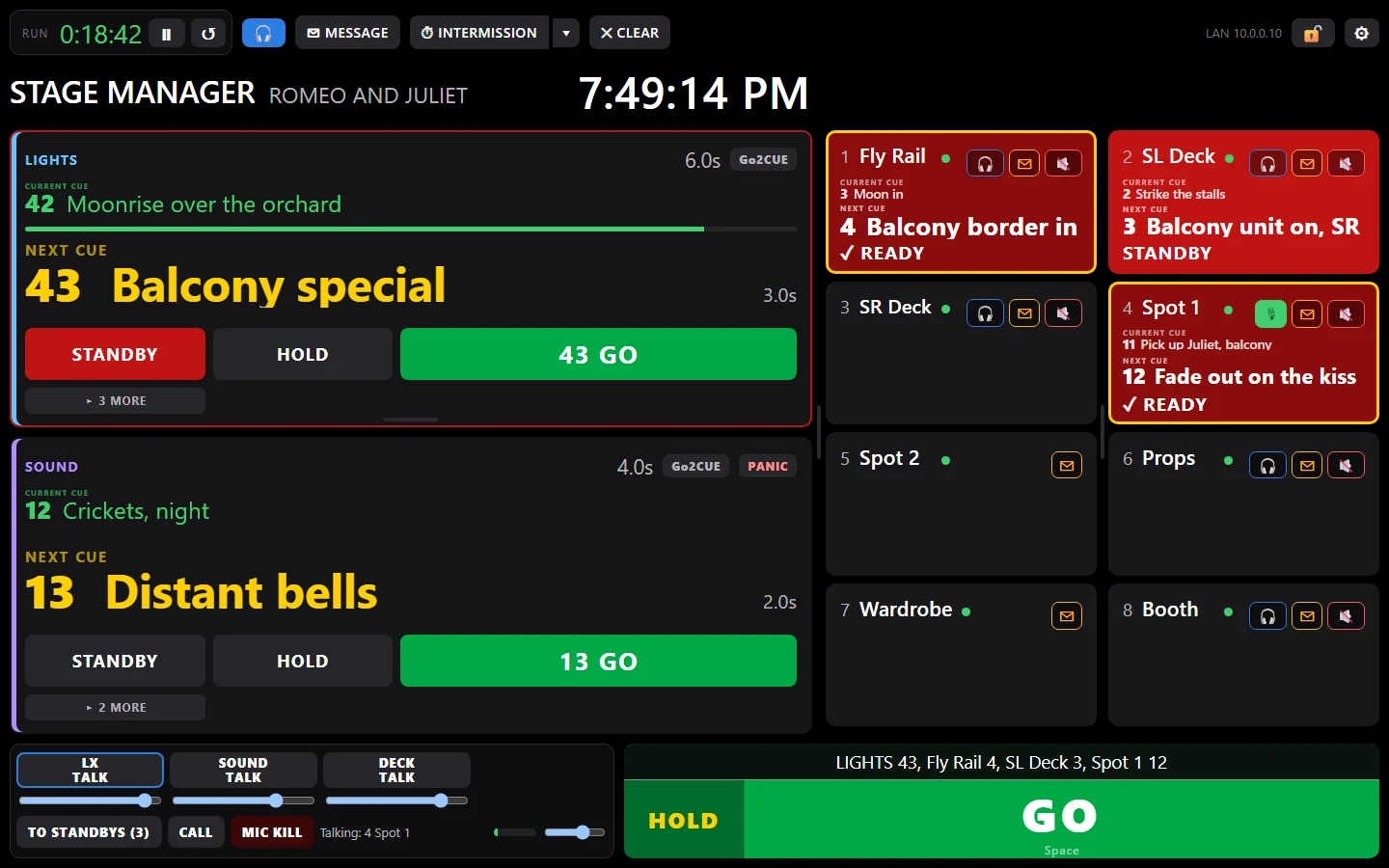
The stage manager's screen has the cue feeds on the left, the station tiles on the right, and the big GO along the bottom, with the strip above it listing what will go. Along the top: the run timer, MESSAGE, INTERMISSION, CLEAR, the lock and the cog, then the show's name and venue, and the clock.
- A feed shows its CURRENT CUE on a small green line and its NEXT CUE on a big yellow line, each with a small label over the cue number, then its STANDBY, HOLD and GO. ▸ MORE under its STANDBY button opens the cues after that; ▾ FOLD closes them again.
- A station's tile shows its number and name, a green dot while it's online, and, for a station with its own cue list, its current and next cue. It turns red for a standby and green for GO.
Lay out the screen
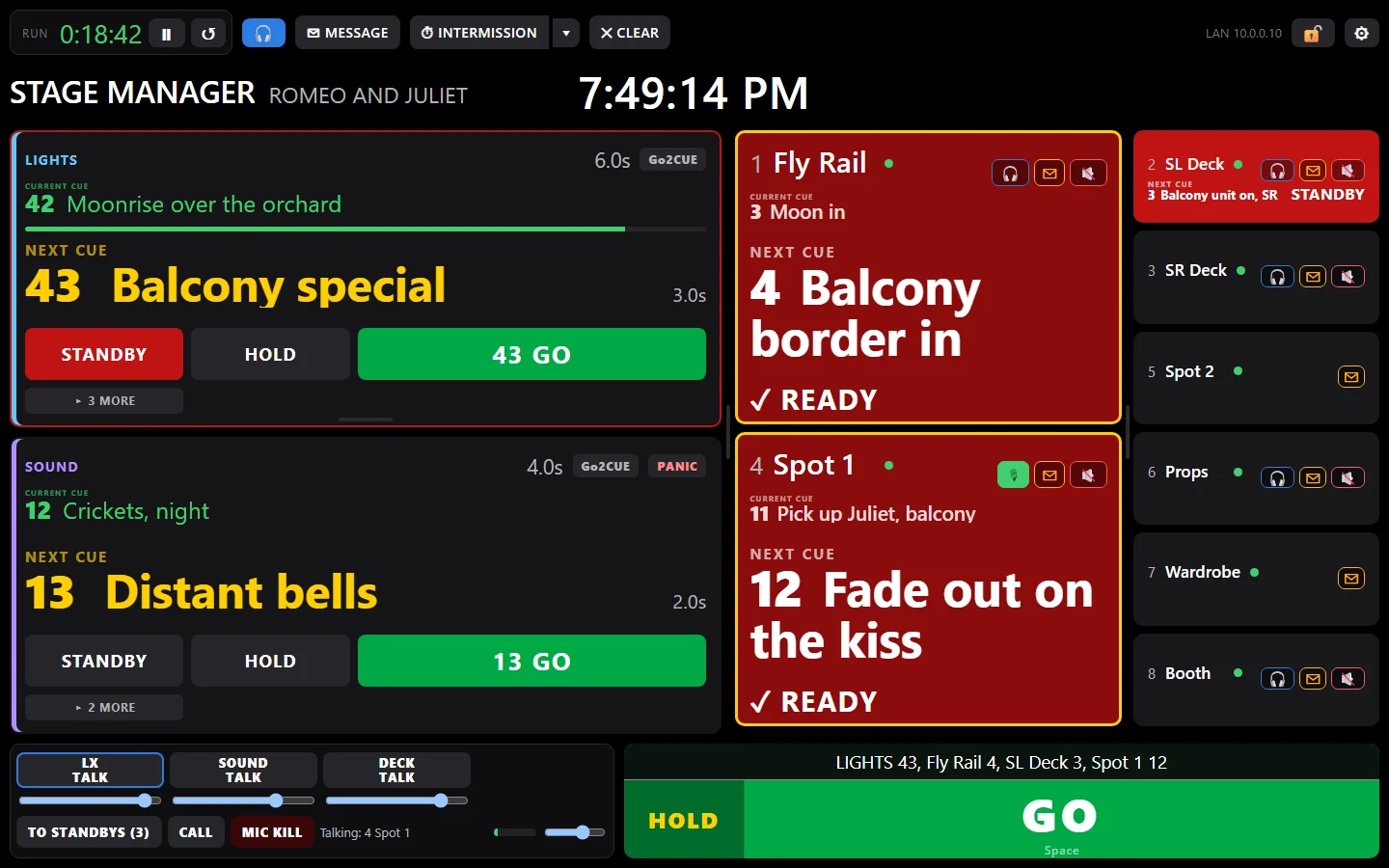
Make the screen fit your show. Thin lines between its parts can be dragged:
- Between the feeds and the stations, to give either side more room.
- Between two feeds, to make one bigger. Its words grow with it.
- Between the two columns of station tiles, to make one column wider.
- A tile's bottom edge, to set its height. The last tile in a column has one too, to leave blank space below it, or none. Double-click it to put it back.
The words in a tile grow and shrink to fit it, and a long name shrinks rather than breaking. To move the feeds and tiles themselves, open the cog > ⇅ Arrange the screen and drag them where you want them, a tile across into the other column too.
Lock it for the show. The lock button beside the cog hides all those lines, so nothing gets dragged by accident. The layout is kept on the hub, and saved with the show file (see Show files).
Show setup
The cog on the stage manager's computer opens Show setup: the whole show in one window, a tab each. Nothing restarts when you save, except a new system id or role. ⇅ Arrange the screen, beside the tabs, moves the feeds and tiles (see Lay out the screen).
- Stations: every station down the side, with a green dot for the ones online now. Pick one to set its name, the feeds it shows, its sound, its cue light address from the lighting console, and its own cue list (typed, or imported from a cue sheet). A station's own cue list always shows on it, whichever feeds it picks. Right-clicking a station's tile opens its page.
- Feeds: the desks, QLab workspaces, OSC and stand-alone cue lists, with Desk triggering on or off for each desk (see Cue feeds).
- Messages: the seven quick messages at the top of Message the crew, each with its own sound, and the lighting console's message addresses.
- Schedule: desk cues and messages at a time of day (see The schedule).
- Show & computer: the show name (on every station's screen, and the name of the show file) and the venue, then this computer's system id, role and remote control, the video overlay, the OBS connection and listening for video sync.
Set up away from the theatre. + Add a station sets one up before its box has ever been on: give it a number, a name, its feeds, its cue list. Save a show file, open it at the theatre, and each box takes its setup the moment it joins with that number. The stage manager's setup wins: a box renamed on its own screen gets the show's name back.
Cue feeds
A feed is one source of cues: a lighting console, a sound desk, a QLab workspace, anything that sends OSC, or a typed list. Set them up under the cog > Feeds. Give each a name the crew will recognize: LIGHTS, SOUND, VIDEO, FLY.
| Kind | What to enter | On the other end |
|---|---|---|
| Eos (ETC Eos family, Nomad) | The console's IP address. Port 3032 (or 3037). | Setup › System › Show Control › OSC: turn OSC on. For 3037, enable Third Party OSC. |
| grandMA3 | The console's IP address, and the sequence number of your main cue list. The port (8000) and an OSC prefix only if yours differ. | Menu › In & Out › OSC: two lines, and Go2Cue's plugin. See grandMA3 below. |
| grandMA2 | The console's IP address, the executor (page.number, 1.1), and the Web Remote login as user:password. | Setup › Console › Global Settings › Remotes: Login Enabled. See grandMA2 below. |
| X32 / M32 (Behringer X32, Midas M32: the sound desk) | The desk's IP address. Port 10023. | Nothing. See X32 and M32 below. |
| QLab | The Mac's IP address, the OSC passcode, and the workspace name (or leave it empty for the first one open). | Workspace Settings › Network: the passcode needs View to show cues and Control for GO and HOLD. |
| WATCHOUT 7 (Dataton) | The Director's IP address (the port is 3019) and the timeline's name, or leave it blank for Main Timeline. | Network window › the WATCHOUT 7 protocol (HTTP) on. Name cues with their numbers ("12 Storm") to see them called that. |
| Isadora | The Isadora computer's IP, for GO and HOLD (Isadora listens on port 1234). | In each scene, an Enter Scene Trigger → OSC Transmit sends Go2Cue the scene's number and name; Go2Cue's feed setup shows the exact addresses. |
| OSC (MagicQ, Hog, Onyx, Resolume, Millumin, Ableton…) | Where to send GO and HOLD (IP and port), if you want those buttons to drive it. | Your software sends /standby/<feed>/cue "12" "Thunder" and /next to the hub on UDP port 53100. |
| Cue list | The cues, one per line: 12 | Fly in the house | 8 (number, what it is, fade time). | Nothing: GO steps through the list, HOLD stops a cue where it is and BACK goes back one. Cue lists come with Cues Lite and up. |
Each feed shows its CURRENT CUE (small and green, with its fade), its NEXT CUE (big and yellow), and the cues after that under ▸ MORE. Before anything has run, CURRENT CUE says Nothing.
Feeds are colored by department, on every screen: Lights blue, Sound purple, Video orange, and a crew station's own list white. A feed's name decides first: a QLab workspace called VIDEO is Video. Green, yellow and red are kept for the cues and standbys.
A feed's GO really runs the next cue on that desk or workspace, and so does the big GO for a feed on standby. If an operator takes their own GO, turn that feed's Desk triggering off (cog > Feeds): every screen still shows its cues live, its buttons on the stage manager's screen read VIEW ONLY, and you cue the operator on a station like the rest of the crew.
grandMA3
Go2Cue follows one sequence on a grandMA3, console or onPC: its cue number and name on every screen, and your GO and HOLD run it. In grandMA3, open Menu › In & Out › OSC, turn on Enable Input and Enable Output, and add two lines:
- Cues to Go2Cue: Destination IP = the stage manager's computer (Show setup shows it), Port 53100, Send Yes and Send Command Yes (Send carries the cue that runs; Send Command lets Go2Cue’s plugin send what’s next).
- GO and HOLD from Go2Cue: Port 8000, Receive Command Yes. GO is
Go+ Sequence <n>, HOLD isPause Sequence <n>.
In Go2Cue, add a feed, pick GRANDMA3, and enter the console's IP address and the sequence number. Give the OSC prefix only if your lines have one. A change to a line's port needs Enable Input off and on again.
grandMA3 tells Go2Cue the cue that runs, the moment it runs; it doesn't send what's next. For NEXT and the cues after it, with names and fade times, add Go2Cue's plugin: download Go2Cue.xml and Go2Cue.lua, put both in the plugins folder of your grandMA3 library (or on a USB stick), import them into the Plugins pool, and run the plugin once. It keeps going until you run it again. It follows sequence 1 and sends on OSC line 1: if yours differ, set the user variables Go2CueSequence and Go2CueOSCLine, or edit the two numbers at the top of the plugin.
grandMA2
Go2Cue follows one executor on a grandMA2, console or onPC, through grandMA2's own Web Remote: the cue running with its fade, NEXT, and your GO and HOLD run it. Nothing to install on the console.
- On the console: Setup › Console › Global Settings › Remotes: Login Enabled. Make a user for Go2Cue with a password (the Web Remote can't sign in as Administrator).
- In Go2Cue: add a feed, pick GRANDMA2, and enter the console's IP address, the executor your main cue list is on as page.number (
1.1), and the login asuser:password. Just the password is enough for a user namedgo2cue.
GO is Go Executor 1.1, HOLD is Pause Executor 1.1. Go2Cue asks the console four times a second, gently: grandMA2 counts it as one of its three remote users.
X32 and M32 (sound desk)
Go2Cue follows a Behringer X32 or Midas M32's show: its cue list, or its scenes or snippets if that's what the desk's Show Control is set to. Every screen shows the cue that ran and NEXT, with their names (a cue with no name shows its scene's). Nothing to set up on the desk: add a feed, pick X32 / M32, and enter the desk's IP address (Setup › Network on the desk).
Desk triggering starts off for a sound desk: the sound operator takes their own GO, and you see it land. Turn it on and your GO runs the desk's highlighted cue. Go2Cue reads which cue ran from the desk moving on to the next, so turn on Scene Go Next in the desk's Setup. A sound desk has no HOLD.
Crew cue lists
Give a crew position its own cue list and its screen shows it the way it shows a desk: the cue they're on, NEXT, and what follows. Its standby says what's coming: STANDBY · FLY 7 · Fly in the house. Each GO to that station steps its list on by itself, however the GO came (the screen, a key, a Stream Deck, an assistant or a desk's cue), and the stage manager's tile shows the next one. A station's own list always shows on it, whichever feeds it picks.
- By hand: cog > Stations, the station's page > Its cue list. Type the cues, one per line.
- From a cue sheet: the station's Import from a cue sheet… takes one list, and cog > Stations > Import a cue sheet… does every department at once. It takes a CSV, or rows exported from Excel or Google Sheets. Columns are found by their headings (Cue or Q, Description or Action, Time or Fade). A Department column makes one list per department: Go2Cue suggests the station for each (FLY to Fly Rail) and you confirm.
- From Google Sheets (Cues Pro): cog > Stations > Google Sheet: sign in with Google and choose the sheet. Keep it whichever way suits you: a tab for each station (a Fly Rail tab, a Deck tab), or one master tab for every department with a column headed Department or Station saying whose each row is. Each station's page says where its cues come from: Typed here or Google Sheet, then Its own tab or Its rows on a master tab. Go2Cue matches tabs and departments named for the stations by itself. Anyone it's shared with can edit the sheet from anywhere, and the stations follow: Go2Cue checks it every few minutes (or when you press Update now). Between shows a change goes straight in. During a show a yellow LIST CHANGED button shows what changed and waits for your Apply now, unless you set it to change the lists at once. A station keeps its place by cue number, and one on standby gets its new list right after its GO.
- Go2Cue reads the sheet with your Google account, from the stage manager's computer. It can open only the sheet you choose, never changes it, and nothing goes through Go2Cue's servers. With no internet, the lists stay as they were last read.
- Cue lists come with Cues Lite and up and don't count against its desks. Linking them to a Google Sheet is Cues Pro. They're saved in the show file.
HOLD and BACK, as on a desk
HOLD stops the cue where it is (its fade bar too); press it again and it carries on. BACK goes back one cue, if a GO went early. The stage manager has them on the list's row, with STANDBY and GO. The next GO always takes the next cue, held or not.
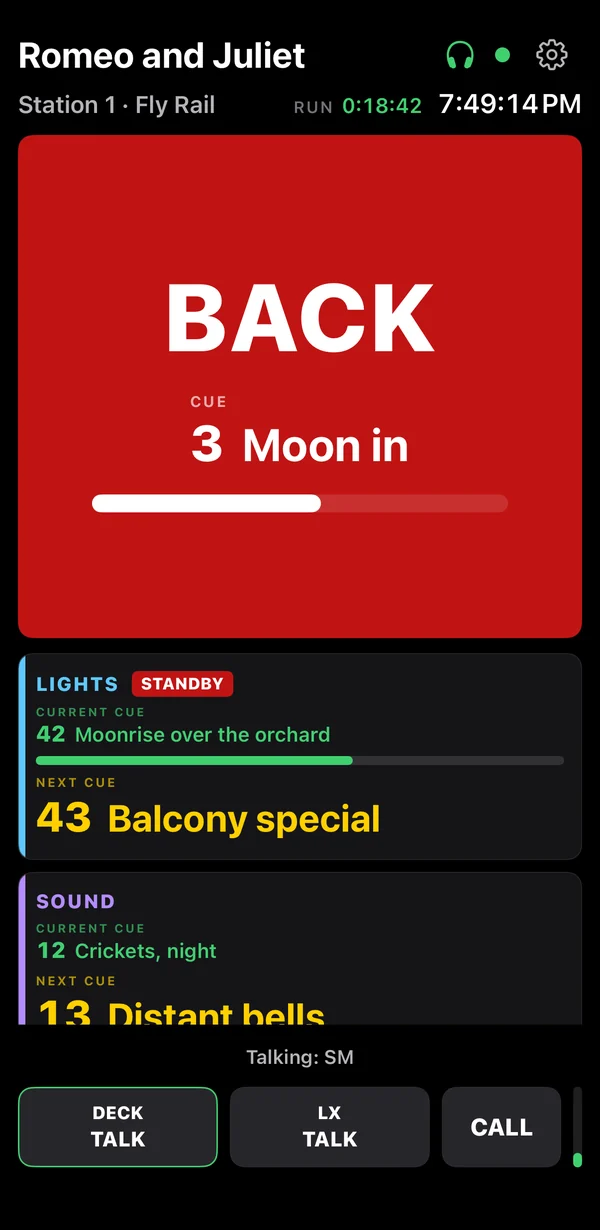
The crew member sees it big on their own station, so they stop or reset with you:
- HOLD turns it yellow: HOLD, and the cue that's held.
- Then BACK turns it red: BACK, and the cue it goes back to.
- Or GO turns it green: GO, and the cue it finishes.
- BACK and GO each show a bar counting down 3 seconds.
Lighting console cues (sACN)
Any lighting console that outputs sACN (DMX over the network) can cue the crew, not just Eos: the stage manager's hub listens. It comes with Cues Pro and the demo; Cues Free and Cues Lite don't take console cues. Go2Cue reads sACN on the show network; it has no wired DMX input, so a console with only a DMX port needs a DMX-to-sACN gateway. On a computer: cog > Stations, each station's Cue light from the lighting console, and cog > Messages for the message addresses. On a box that is the hub: cog > Console cues (sACN), over its Wi-Fi.
- Cue light: a universe and address for a station. Bring the address up past 50% in a cue and that station goes to STANDBY; bring it to 0 in the next and it's the GO. Patch a spare address per station (1/497 to 1/512 for sixteen stations, say) to a channel on your console.
- Message: a universe, address and level that sends a message, to everyone or one station, urgent or not, with a sound. Several on one address at different levels: 10% "Five minutes, please", 100% "Hold please". A level is sent once it has held for a moment, so a fade passing through doesn't send it; it can be sent again after the address leaves that level.
- The screen shows which console is sending each universe and every rule's level now. With several consoles the highest sACN priority wins; if they all stop, nothing happens.
Crew stations
A station can be a Go2Cue box, a Windows or Mac computer, or an iPhone or iPad. They all show the same cues, and one show can mix them.
A Go2Cue box
- Set it up once, by USB-C from the stage manager's computer: in Go2Cue, open the cog, then Box setup. Sign in to your Go2Cue account first (free, with just an email). A new box takes a box setup: $5, or included with a license you own; a box set up before takes none, and works with any Go2Cue user's show. Give it the show's Wi-Fi, its station number (1 to 16) and a name (Fly Rail, SL Deck, Spot 1). The box then fetches Go2Cue from your computer. Setting it up makes it a Go2Cue box for good: it runs only Go2Cue and its updates from then on, and its old program is permanently erased. After that, boxes update over the show network (see Updates).
- To change its Wi-Fi, station number or name later, tap the cog on the box.
- The box restarts and appears on the stage manager's screen as a tile.
On a battery: a box runs from USB-C power, or from a battery inside, which it charges whenever USB-C is plugged in.
- Fitting it: one single-cell LiPo (3.7 V) with a protection circuit, on the board's small battery plug or the back header's battery pin, never both. Check the plug's wiring before you connect it.
- On screen: the box shows its level beside the Wi-Fi signal, and the stage manager's tile shows it too, red and blinking under 20%.
- Charging faster: tell the box the battery's size with
battery 2500(mAh) over USB, and it charges a bigger battery faster.
A computer
- Install Go2Cue and choose Crew Station.
- Under the cog, give it a name, a station number and the show's system id.
An iPhone or iPad
The Go2Cue Station app makes an iPhone or iPad a crew station, with coms. It's available to beta testers now (be a beta tester). It needs iOS or iPadOS 16 or later: an iPhone 8 or newer, or an iPad (5th generation, from 2017) or newer, iPad mini 5, iPad Air 3, or any iPad Pro.
- Join the show network: the same Wi-Fi as the stage manager's computer.
- Open Go2Cue. The first time, it asks to find devices on your local network: Allow. Without that it can't find the stage manager's computer.
- Tap the cog (top right) for the station's settings: its station number (1 to 16), a name, and the feeds it shows. Under Stage manager's computer it finds the hub by itself; tap it to follow its show. Then Done.
- It appears on the stage manager's screen as a tile, like any station. The stage manager's screen calls it An iPad or An iPhone.
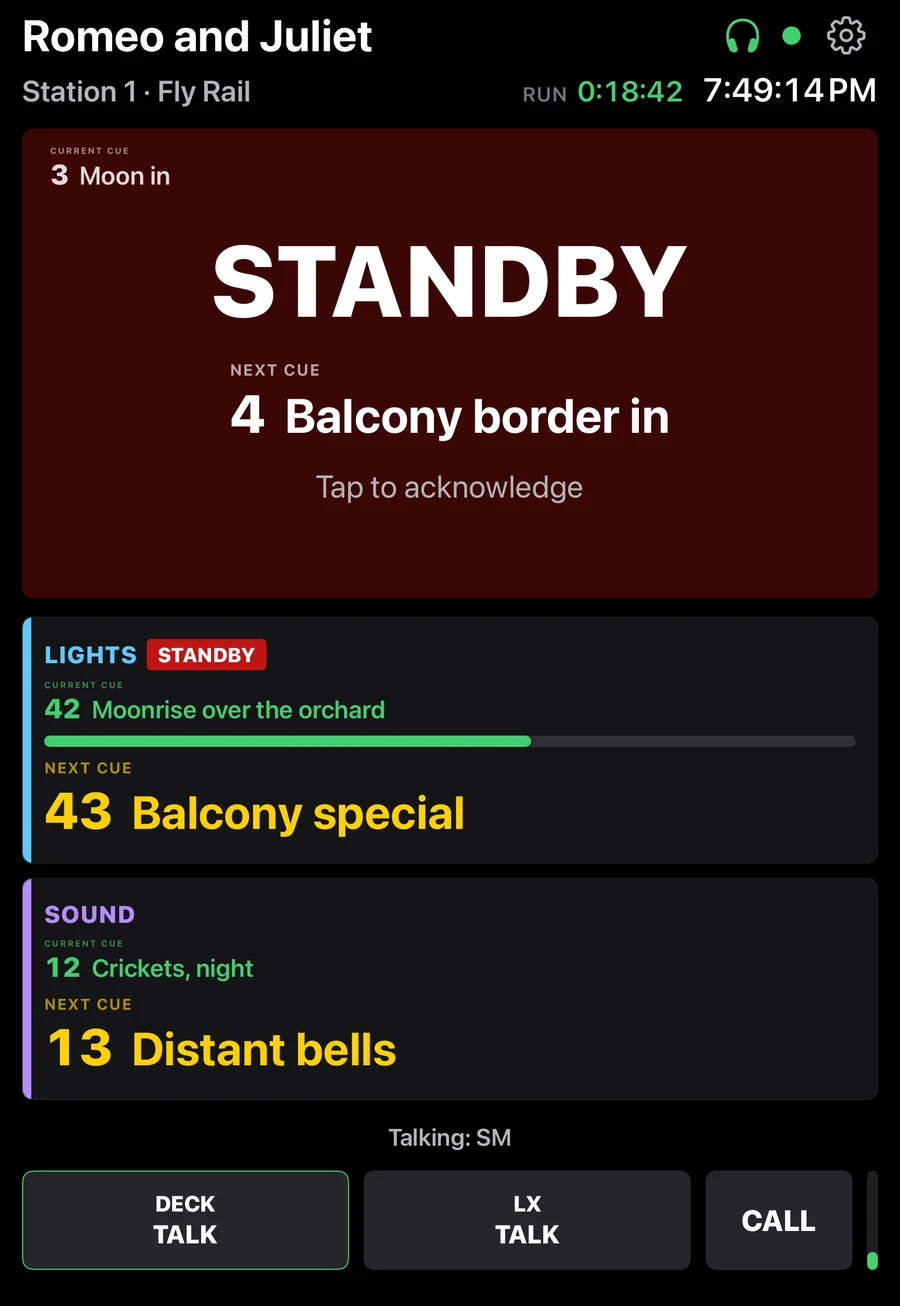
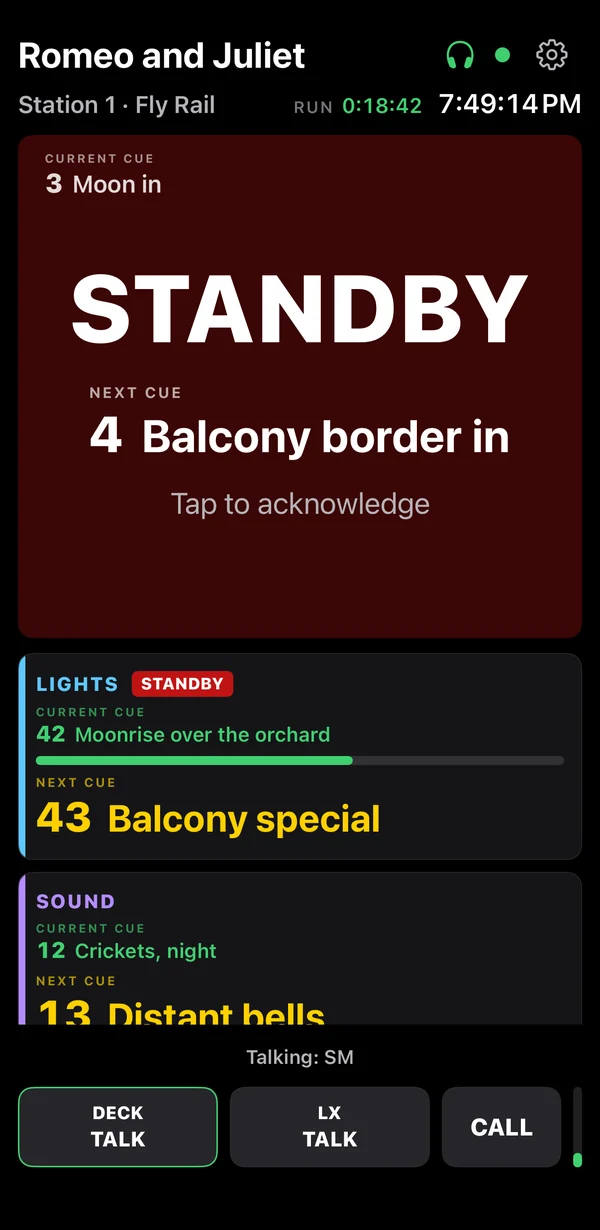
- Venue Wi-Fi that hides it: some networks keep devices from finding each other. Type the stage manager's computer's IP address in the app's settings, under Stage manager's computer (the stage manager's screen shows it at the top right, after LAN).
- The screen stays on while the app is open: no need to change Auto-Lock. Keep it on a charger. Locking it, or switching to another app, pauses it until it's opened again, unless coms are on; the stage manager sees it go offline.
- Coms: turn on Coms in its settings. The first time, it asks for the microphone: allow it. Hold TALK to talk, or double-tap it to leave it open; tap CALL to call the stage manager. A headset is best.
- One device, one station: iOS's Guided Access (Settings › Accessibility › Guided Access) keeps it in Go2Cue until someone enters a passcode.
From the stage manager's screen
- Right-click a tile to open its page in Show setup: its name, feeds, sound, cue list and console address. On a box that is the hub, long-press the tile. The hub keeps it and gives it to the station whenever it's on.
- Size and place the tiles as you like: see Lay out the screen.
- Two stations can share a number on purpose, for example boxes on both sides of the stage: one tile, one standby for both, and READY once both have acknowledged.
Running the show
- Standby: click a station's tile. It turns red and flashes on both screens. The station shows the current cue small in its top-left corner, STANDBY big, and the NEXT CUE big below it.
- Acknowledge: the crew member taps or clicks their screen (or presses Space on a computer). The flashing stops and a yellow edge shows READY on both screens.
- GO: press the big GO (or Space). Everything on standby goes at once: stations turn green and show GO with the cue they're going on, and feeds on standby take their next cue. The strip above GO lists exactly what will go.
- A station's GO clears itself after 3 seconds.
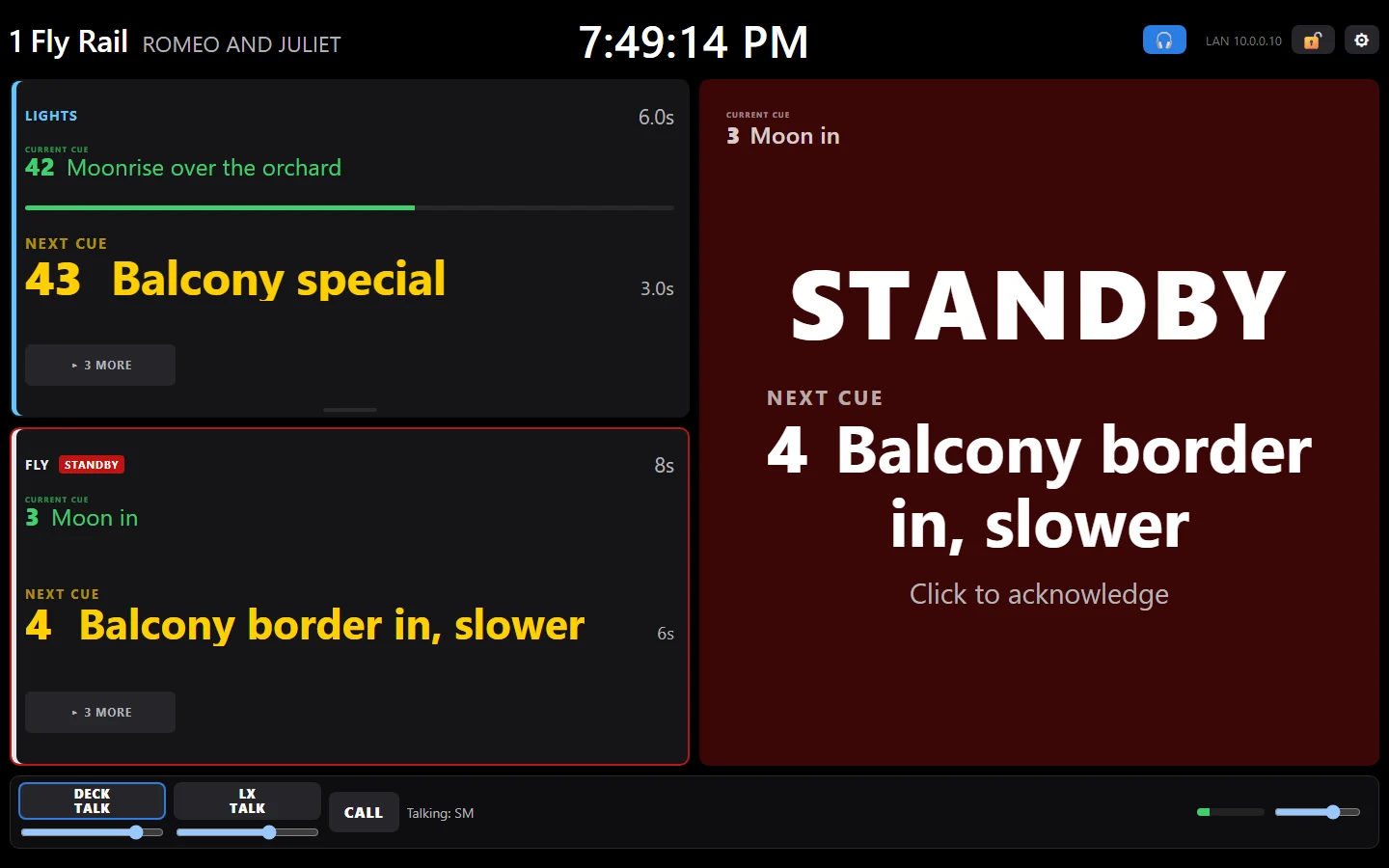
Each feed has its own STANDBY, HOLD and GO:
- STANDBY puts the feed on standby, so the big GO takes it with the stations. Stations following that feed see a red edge and a STANDBY tag.
- GO takes that feed's next cue now, and nothing else.
- HOLD on Eos is Stop/Back: once holds a running fade, again goes back. On QLab it pauses, and a second press resumes. GO resumes a held cue.
- A crew cue list has BACK too (see HOLD and BACK).
- CLEAR in the header drops every standby.
| Color | Means |
|---|---|
| Red, flashing | Standby, not yet acknowledged |
| Red with a yellow edge | Standby, acknowledged: READY |
| Green | GO. A small green line is the CURRENT CUE. |
| Yellow | The NEXT CUE, on its big line. A whole station yellow is HOLD on its crew cue list. |
| Red, with a bar counting down | BACK on a crew cue list |
| Slate blue | NO LINK or NO WI-FI: a fault, never a cue |
| Amber, flashing | A message waiting to be read |
Messages and sound
- MESSAGE in the header sends a message to everyone, to chosen stations, or to everyone following a feed. Quick calls (Places, please; Hold please; Five minutes…) send with one click.
- A message fills the station's panel in flashing amber until it's tapped. If a standby is up, the standby keeps the panel and "Message waiting" shows underneath.
- The tile shows an envelope until the message is read, then a tick.
- A sound with a message: none, a chime, or an alert. A station plays it only if its own sound is on: off to start, so a box in the wings stays quiet. Turn it on for a dressing room or the green room (Off, Soft, Medium or Loud). It plays when the message arrives and twice more, 30 seconds apart, while unread.
Countdowns and calls
- INTERMISSION in the header starts the intermission with one press: 15 minutes, with ten, five and "Places for Act Two" called to every station as messages, with their sounds.
- Curtain: the ▾ beside it starts a countdown to curtain, at a clock time or in so many minutes, with the half hour, fifteen, five and places called.
- Every station shows the time left. At zero it shows PLACES for two minutes.
- The ▾ also edits both lists of calls (up to six each, with their words and sounds) and the intermission's length. While a countdown runs it moves zero a minute either way, or stops it.
- A call already past when the countdown starts is skipped, not sent late.
The schedule
Cog > Show setup > Schedule: things Go2Cue does by the clock, on the days you pick. Turn the worklights on when the crew arrives, run the preshow look when the house opens, or send the half-hour call. It comes with Cues Pro.
- A desk cue: pick the desk and type the cue number. On Eos it runs that cue (
900, or2/900for cue list 2), or a macro by its number. On QLab it starts that cue by its number, without moving the playhead. - A message: the words, to everyone or one station, urgent or not, with a sound.
- A minute before, the stage manager's header shows what's coming (WORKLIGHTS IN 0:42). Click it to skip that one time. Afterwards a note says it went, or why it didn't.
- Never late: each goes once, in its minute. If the computer is off or asleep then, it waits for its next day.
- Never into a show: a desk cue doesn't go while any station is on standby, or to a desk whose Desk triggering is off. A desk that isn't connected doesn't get it either; the note says so.
- Run now beside each one does it straight away, to check it while you set up.
- Times are the stage manager's computer's clock, and Go2Cue has to be open on that computer. A show file carries its schedule.
Eos needs nothing more than its GO does: OSC on (see Cue feeds). QLab's passcode needs Control.
Notes
Take notes during rehearsal. Each one is stamped with the clock, the run time, every desk's cue at that moment, and the act, scene and page. Go2Cue Notes Free has your own typed notes, saved as text. Notes Lite adds spoken notes, two Notes desks, and notes to a spreadsheet or Google Sheets. The 30-minute demo tries them all.
- Type one: press Enter (or ✎ Type a note in the notes). The cues are caught the moment you press it, so finish the thought at your own pace. Enter saves it, Shift+Enter starts a new line, Esc drops it.
- Speak one: hold N (or ✎ NOTE at the top), speak, and let go: it's written down. The first time, choose a speech model and press Set up speech (Standard is quick on any computer). It all happens on this computer, with no internet once it's set up, and the recording is deleted as soon as its words are out. On a Mac, first install the speech engine in Terminal:
brew install whisper-cpp. - The notes: NOTES at the top opens them beside the show. Fix any word in place; each note's department is a guess you can change, and ✕ deletes it.
- Change the keys: Show setup › Notes › Keys, or ⌨ in the notes. A MIDI pad or a foot pedal works too, and so does a Stream Deck NOTE key (hold it and speak; it lights while it listens).
Where the notes go
- Google Sheets: sign in once in Show setup › Stations › Google Sheet. Name the rehearsal (Tech 1, Designer run) in the notes, then press Send to Google Sheet: a sheet in your Google Drive with all the notes, then a tab for each department. Share it as you would any sheet. Open the sheet opens it; the ⚙ in the notes chooses the folder or the sheet they go to.
- Save: Spreadsheet (a CSV for Excel, Numbers or Google Sheets), Text (by department), or Subtitles… (see Subtitles).
- Copy all puts them on the clipboard; Clear all (press twice) starts again.
Notes desks: the director and designers
A Notes desk is a laptop in the house for the director or a designer: the cues as they run, and their own notes, typed or spoken. Notes Lite has two Notes desks, Notes Pro as many as you like. A Notes desk needs no license of its own.
- Set it up: install Go2Cue, and when it asks what this computer is, choose Notes desk (later: the cog, This computer is). On the same network and system as the stage manager, it finds the hub by itself; until then, notes still work, without the cues.
- Your name goes at the top of the notes (LX Designer), and a department, or Any department to let Go2Cue guess from the words.
- A note on an earlier cue: tap the cue in the list, then type or speak: the note goes on that cue. It goes back to live after one note (or press Esc).
- What it shows: the cog › This notes desk: Feeds it follows, and Stations it watches (their standbys and GOs, to look at).
- Share my notes with: on a Notes desk, The stage manager (and the director), or Nobody (they stay on that computer, and the desk sends its own with Send to Google Sheet). Desks never see each other's notes. On the stage manager's computer, it's whether the desks see the stage manager's notes in their review. Tick The director's desk on the director's laptop to see every note shared with the stage manager too. Shared notes go into the stage manager's Google Sheet.
Rehearsal video
Record a rehearsal, then watch it with every cue and every note lined up beside it: click one and the video goes there. Video review comes with Notes Pro.
Review a video
- Open it: in the notes, ▶ Review a video…, and choose the recording. It lines itself up (see below); the badge at the top says how.
- The list beside it has every cue and note. Click one to go there; type in the search to find LX 45, too dim or Fly Rail. The chips choose whose notes and which desks show; your own notes start on.
- Keys: Space plays and pauses (never a GO here), ← → the previous or next cue, [ ] the previous or next note, N a note at this moment, C cue captions under the picture, Esc closes it.
- A note while you watch is stamped at that moment of the rehearsal, with its cues.
- Several cameras: + Add a video… adds OBS's next file or another camera's. Each lines itself up, and the timeline covers them all: the chips switch cameras at the same moment, and it plays on from one file into the next.
- It plays MP4 and WebM. OBS's MKV doesn't: in OBS, File › Remux Recordings makes an MP4 with no quality lost, or record to MP4 (Settings › Output). An iPhone's High Efficiency (HEVC) video may not play on Windows: set the iPhone's camera to Most Compatible.
How it lines up
The stage manager's computer keeps every cue on its clock. A video lines up with it by the first of these it finds:
- OBS told it: with the OBS connection on (below), Go2Cue knows the moment each recording started.
- The overlay's time stamp in the picture (see the overlay).
- Its sound: with Listening for video sync on (below), Go2Cue matches the video's own sound to what it heard, to within a frame or two. Match the sound tries again, or against another video already lined up.
- The slate: it looks for a phone's slate in the first minute and a half and the last minute. Read the slate looks from where you are.
- By hand: Sync to a cue…: pause where a cue happens (the lights change), then click that cue in the list. The nudges move it by a second or a frame.
Until then it's placed roughly by the file's own time (the badge starts with ≈): check a cue, and sync if it's off. Once lined up, it stays lined up the next time it's opened.
OBS
Show setup › Show & computer › OBS connection. In OBS: Tools › WebSocket Server Settings, tick Enable WebSocket server; Show Connect Info has the password. Then tick Connect to OBS, with OBS's address (127.0.0.1 on this computer) and the password.
- ● Start recording, there in the OBS connection, starts OBS recording, and ■ Stop recording stops it. Or tick Record while the run timer runs: a new file each time the timer starts.
- NO SOUND flashes if OBS is recording silence: in OBS, check the Audio Mixer (a microphone, not muted, its meter moving).
- When it stops, the recording opens in Review already lined up, and its cue subtitles are saved beside it.
- Put the overlay on top of OBS's scene adds the overlay to OBS for you.
Listening for video sync
Show setup › Show & computer › Listening for video sync: While the run timer runs or Always, with the computer's own microphone. Listen now starts it straight away, and ■ Stop listening stops it. Go2Cue keeps a sound signature (how each pitch band rises and falls), never the sound itself. Best on the computer nearest the cameras, with its own microphone rather than a headset.
Google Drive
- Put it on Drive: in Review, ☁ Put on Drive…: the videos, their cue subtitles, and a small Go2Cue review file with the cues, how each video lines up, and the notes everyone may see, in a folder of your Google Drive. It goes in the background (the ☁ at the top) and carries on after a restart.
- Open it: share the folder the usual Drive way. Anyone with Go2Cue presses ☁ Google Drive… in the notes, opens the folder, selects all, and it opens in Review already lined up, with the notes.
Video overlay (OBS)
Record a rehearsal with the show over it: each desk's cue and NEXT with its fade, the stations' standbys and GOs, who's talking on headset, the run timer and the clock. The stage manager's computer serves it as a page with a clear background, so nothing needs installing.
- In OBS: add a Browser Source, 1920 × 1080, with the address from Show setup › Show & computer › Video overlay:
http://127.0.0.1:53112/overlayon the stage manager's computer, or its network address from another computer. vMix, Wirecast and any browser take it too. - What it shows: add to the address.
layout=toporlayout=side;feeds=1,3;stations=allornone(the usual is those on standby or going);next=0,talk=0,timer=0,clock=0,show=0to leave things out;scale=1.5;bg=0.5for lighter panels. - It comes with Notes Pro. Nothing in it comes from your settings: no passcodes.
- The time stamp: a small block of squares in a corner carries the stage manager's clock in every frame, so a recording lines up with the cues and notes later, however it's trimmed or re-exported.
stamp=0leaves it out.
Any camera: the slate
Filming on a phone, a camcorder or a cinema camera? Show setup › Show & computer › Slate on a phone shows a code: scan it and the phone opens the slate (it has to be on the show network). Press record, hold the phone up to the lens for a few seconds, and put it away. Its code carries the stage manager's clock ten times a second, with a flash and (tap once) a beep on each second, so the video lines up with the cues and notes afterwards. Do it again after a card change.
Subtitles
The stage manager's computer keeps every GO, and each station's STANDBY and GO, on its clock. In the notes, Subtitles writes them as subtitles timed from when your recording started, and your notes too if you like, in a file of their own. Save the file beside the video with the same name (Tech 1.mp4, Tech 1.srt): VLC, QuickTime and IINA show them, editors import them as captions, and YouTube turns them into a searchable transcript.
Asst Stage Managers
A second stage manager (or third) can run the show from another computer or box: choose Asst Stage Manager. It shows the stage manager's screen live, and every press goes to the hub, so two people can never leave the stations disagreeing. Cues Lite has one, Cues Pro as many as you like.
If the hub's computer fails, the assistant's screen says so, with TAKE OVER. One press makes it the hub, with every light, standby, READY and countdown as they were. Give assistants the same feed settings as the hub, so the desks connect at once. When the old hub comes back, it joins as an assistant rather than fighting.
Coms (headsets)
Go2Cue Coms puts headset talk on the stations you already have: the stage manager's computer, each crew computer, and each iPhone or iPad. Coms Free has the stage manager's talkback: your voice to the stations, one way, and to whoever is on standby. Coms Lite adds a party line everyone on headset talks and listens on, for 8 stations. Coms Pro adds your own channels, on every station.
- Turn it on: on a computer, click the headset button at the top of the screen, on each one that talks or listens. Pick the microphone and headphones there, or leave them on the system's own choice. On an iPhone or iPad, turn on Coms in the app's settings. A Mac asks once to use the microphone, and an iPhone or iPad asks when Coms is first turned on: allow it.
- Wear a wired headset. USB or a plug works best. Bluetooth adds about a fifth of a second and drops to phone quality while the mic is on.
- Echo canceling on Windows: beside the microphone, Echo cancelling is on to start. It's Windows' own echo canceling, on the microphone's side only, so the computer's other sounds (QLab, music) aren't turned down. Leave it on with speakers; with a headset it does no harm.
- On a Mac a headset is a must: Go2Cue doesn't cancel echo there (Apple's echo canceling would turn QLab down too).
- Talk: hold TALK to talk, or tap it twice and it stays open until you press it again, on a computer, iPhone or iPad. T does the same on a computer (cog > Shortcuts to change it, or give it a MIDI pedal). With channels, each has its own key and level; T talks on all of yours at once.
- To standbys: the stage manager's TO STANDBYS key talks straight to every station on standby now, whatever their channel. To talk to one station alone, hold the headset mark on its tile.
- Call: tap CALL to light the call light until you tap it again (or hold it for a moment): a crew member's call shows violet on the stage manager's screen, and theirs flashes when the stage manager calls. MIC KILL closes every open mic.
- Channels (Coms Pro): Show setup > Coms. Name up to 8 channels, then click each box to decide who talks, who only listens, and who's off. Each person can be on 4 channels at most. The show file keeps it.
- The network: coms uses UDP 42425 to the stage manager's computer, which should be wired. Stations on Wi-Fi do best on 5 GHz. Voice is marked as voice, so a Wi-Fi network that honors it sends it first, and it never holds up a cue.
Keys, MIDI and Stream Deck
- Keyboard: cog > Shortcuts. Space is GO, 1–0 stand by stations 1–10, M opens messages. Any action can have its own key.
- MIDI: in the same dialog, click an action's MIDI slot, then press a pad, key or foot pedal. MIDI works even with Eos or QLab in front, so you can call by feel with your eyes on the stage.
- Stream Deck: install the Go2Cue plugin and drag the keys you want anywhere: GO, a station's standby (or its own GO), a feed's STANDBY/HOLD/GO (and BACK on a crew cue list), a preset message, Clear messages, Intermission, Curtain, Clear, and Acknowledge for a crew computer (it shows your HOLD or BACK on that station's own list, too); and for coms, Talk, To standbys, Talk to a station, Call and Mic kill; and NOTE, held to speak a rehearsal note. On a Stream Deck +, the dials press to talk and turn for each channel's level. Each key shows live state in the screen's colors.
- Companion, show software or scripts: the same buttons over OSC (UDP 53100,
/standby/sm/go…) or a WebSocket. Allowed from this computer by default; the cog sets it to the show network or off.
Let a desk cue the crew
A lighting desk (Eos, grandMA3) or QLab can stand stations by and GO them as part of its own cues. The fly rail lights STANDBY when the desk's cue 42 runs, and GO comes with cue 43, without the stage manager pressing anything.
| Send this OSC | It does |
|---|---|
/standby/sm/station/Fly_Rail/standby | Stands that station by (by name, spaces as _, any case, or by number: /standby/sm/station/3/standby). |
/standby/sm/station/Fly_Rail/go | GOes that station only. Nothing else goes: no other station, no desk. |
/standby/sm/station/Fly_Rail/clear | Takes its standby away. |
- Where to send it: the stage manager's computer, UDP port 53100.
- Eos: under Setup › System › Show Control › OSC, set the OSC UDP transmit address to the stage manager's computer and the port to 53100. Then add the string to the cue (or to a macro the cue runs).
- grandMA3: in Setup › In & Out › OSC, add an OSC line sending to the stage manager's computer on port 53100, with Send Command Yes (SendOSC needs it). Then put a
SendOSCcommand with the message above in the cue's command (or a macro the cue runs). - QLab: a Network cue, destination the stage manager's computer on port 53100, with the OSC message above. Group it with the cue it belongs to.
- grandMA2 and other consoles: they don't send OSC, but any console that outputs sACN can stand stations by and GO them through a DMX address (Cues Pro): see Lighting console cues (sACN).
- Who may send them: a desk that is one of the show's feeds (its address is in the feed settings) always may. Anything else on the network needs the cog's remote control set to the show network.
- An automatic standby shows on the stage manager's screen like any other, and the stage manager can still clear it or GO it by hand.
Show files
Cog > Show file…, then Save show…, saves the show as a .go2cue file, named for the show: its name and venue, the feeds (with addresses, passcodes and desk triggering), the countdown calls, the quick messages, the schedule, the cue lists and console addresses, each station's setup, and the screen's layout (see Lay out the screen). Open show… opens one on another computer, or for the next run. Opening asks first, then everything applies at once: the feeds reconnect, the screen takes its layout, and each station gets its setup (one that's off gets it when it comes back). This computer's role, network, system id, shortcuts and license stay as they are.
Updates
- Go2Cue itself: when a new version is out, a yellow UPDATE chip appears in the header. It shows what's new, whether your license covers it, and a Download button. Nothing installs by itself: update between shows. Your settings carry over.
- Station boxes: when the stage manager's computer runs a newer version than the boxes, the header shows N BOXES TO UPDATE. Press it, then Update them. Each box updates when nothing is on standby there, shows UPDATING, and restarts in about a minute. No internet is needed: the box gets it from the stage manager's computer, and takes only firmware signed by us.
Licenses
Go2Cue is one app, sold as three parts: Cues, Notes and Coms. Each part is Free, Lite or Pro, and you can mix them (Cues Pro with Notes Lite, say). All three at Lite is Go2Cue Lite; all three at Pro is Go2Cue Pro. Prices are on the pricing page.
| Part | Free | Lite | Pro |
|---|---|---|---|
| Cues: desks | 1 (view only) | 2 | 16 |
| Cues: stations | 1 | 8 | 16 |
| Cues: Asst SMs | 0 | 1 | any |
| Notes: Notes desks | 0 | 2 | any |
| Coms | Talkback | Party line, 8 stations | Channels, any stations |
- Add a license: cog > License, type the key from your email, and press Activate. A booth computer with no internet: open the activation page on any phone with the computer's id, and paste the code it gives you.
- Two computers per license: the hub and a spare. Move it from your account page or with Remove license.
- To own: no subscription. The versions released in your year of updates run for good. For newer versions, buy one year of updates whenever you want, from any version; the year starts the day you buy.
- Upgrade or add a part: from your account page, for the difference in price.
- To rent: the header shows RENTAL ENDS for the last three days, then everything still runs for one grace day. After that the hub goes back to Free at its next launch, or after an hour with nothing on standby, never in the middle of a show. Every rental dollar counts toward owning.
- Education: K-12 theatre teachers 50% off, college and university students and teachers 30% off, from the education page.
- Over the license's numbers, extra feeds show "Needs a bigger license" and an extra box shows FULL. A box already in the show always gets back in.
When something's wrong
| What you see | Try |
|---|---|
| No stations appear on the stage manager's screen | Same network and the same system id everywhere. On Windows, check that Go2Cue is allowed through Windows Firewall on private networks (Windows Security › Firewall › Allow an app). On a Mac, System Settings › Privacy & Security › Local Network. |
| An iPhone or iPad doesn't find the stage manager's computer | On the iPhone or iPad, Settings › Privacy & Security › Local Network: turn Go2Cue on. Check it's on the show's Wi-Fi. If the venue's Wi-Fi hides devices from each other, type the stage manager's computer's IP address in the app's settings, under Stage manager's computer. |
| An iPhone or iPad station goes offline | It pauses when it's locked or another app is opened, unless coms are on. Open Go2Cue again, and keep it on a charger. |
| A station shows NO LINK | It can't hear the hub: check its Wi-Fi, and that the stage manager's computer is awake and on the same network. It recovers by itself. |
| A box shows FULL | The license's station count is used up. Upgrade, or free a station. |
| A feed says "Console not connected" | Check the IP address and that OSC is on at the console (Eos) or the passcode has View and Control (QLab). The computer and the desk must be on the same network. |
| "2nd stage manager on system…" | Two hubs share one system id. Change one, or make one an Asst Stage Manager. |
| A box says UPDATE FAILED | It carries on as it was and tries again a minute later. Check its Wi-Fi signal. |
| Google's picker shows a 403 error | When you signed in with Google, tick the box for Google Drive files (Go2Cue only reads the sheet you choose). Sign out and in again under cog > Stations > Google Sheet. If the browser has more than one Google account, sign out the others. A school or company Google account may need its IT to allow outside apps to use Google Drive (the Drive SDK setting). |
| A rename didn't reach a station | It arrives when the station is next on, as long as the stage manager's Go2Cue is open. Check the station's number matches its page in Show setup. |
Still stuck? Write to support@go2cue.com with what you see and the version (in the window title).